
Compass CLI
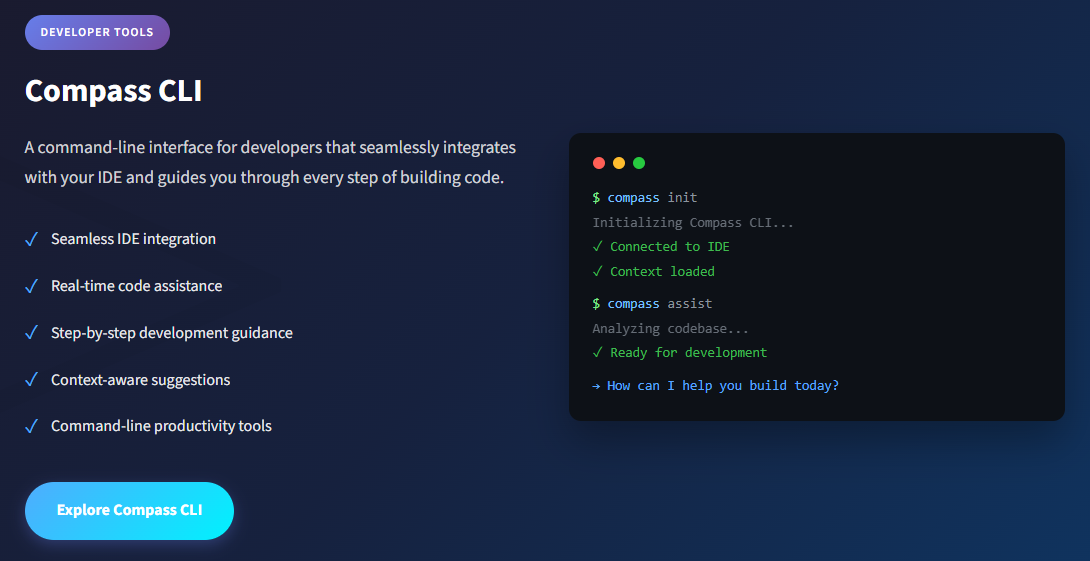
A powerful command-line interface that seamlessly integrates with your IDE and guides you through every step of building code. Get real-time assistance, context-aware suggestions, and productivity tools right where you work.
Learn More
Visit the Compass CLI home page for more information and interactive demos.
Key Features
Seamless IDE Integration
Works seamlessly with VS Code, JetBrains IDEs, Vim, Neovim, and more. Your CLI assistant stays in sync with your editor context automatically.
Real-time Assistance
Get instant code suggestions, error explanations, and optimization recommendations as you type. No waiting, no context switching.
Step-by-Step Guidance
Break down complex tasks into manageable steps. Compass CLI guides you through implementation with clear, actionable instructions.
Context-Aware
Understands your project structure, dependencies, and coding patterns. Suggestions are tailored to your specific codebase and tech stack.
Productivity Tools
Generate boilerplate, refactor code, create tests, and manage dependencies. Common tasks are just a command away.
Enterprise Security
Your code stays private. Local processing options, SOC 2 compliance, and enterprise-grade security for sensitive projects.
Installation
Install Compass CLI with your preferred package manager:
npm
npm install -g @compass-ai/cliWindows
winget install CompassAI.CLIGetting Started
After installation, initialize Compass CLI in your project:
compass initThis will:
- Connect to your IDE
- Analyze your project structure
- Load context from your codebase
- Prepare the environment for development assistance
Workflow
1. Initialize Your Project
Run compass init to connect to your IDE and analyze your project structure. Compass learns your codebase instantly.
$ compass init
✓ Project analyzed
✓ IDE connected
2. Describe Your Task
Tell Compass what you want to build in plain English. It understands complex requirements and breaks them down.
$ compass "add user auth"
Planning implementation...
→ 5 steps identified
3. Follow Guided Steps
Compass breaks down the task and guides you through each step, generating code and explaining decisions.
Step 1/5: Create auth module
✓ Generated: auth.ts
→ Continue? (y/n)
4. Ship with Confidence
Review the changes, run tests, and deploy. Compass helps ensure code quality at every step.
$ compass review
✓ All tests passing
✓ No security issues
✓ Ready to ship!
Usage Examples
Code Assistance
Get help while coding:
compass assistThis analyzes your codebase and provides context-aware assistance based on your current file and project structure.
Generate Code
Create boilerplate and common patterns:
compass generate component MyComponentRun Quality Checks
Review your code before committing:
compass reviewFeatures in Detail
IDE Integration
Compass CLI works with popular IDEs and editors:
- Visual Studio Code
- JetBrains IDEs (WebStorm, IntelliJ IDEA, PyCharm, etc.)
- Vim/Neovim
- Sublime Text
- And more
The CLI maintains awareness of your current file, cursor position, and project context to provide relevant assistance.
Context-Aware Suggestions
Compass CLI analyzes:
- Project structure and dependencies
- Coding patterns and conventions
- Framework and library usage
- Current file context
- Git history and changes
This enables it to provide suggestions that fit naturally into your existing codebase.
Security and Privacy
- Local Processing: Option to process sensitive code locally
- SOC 2 Compliance: Enterprise-grade security standards
- Private Code: Your code stays private and secure
- No Data Retention: Optional modes with zero data retention
Support
For issues, questions, or feature requests, please visit our support portal or contact our team.